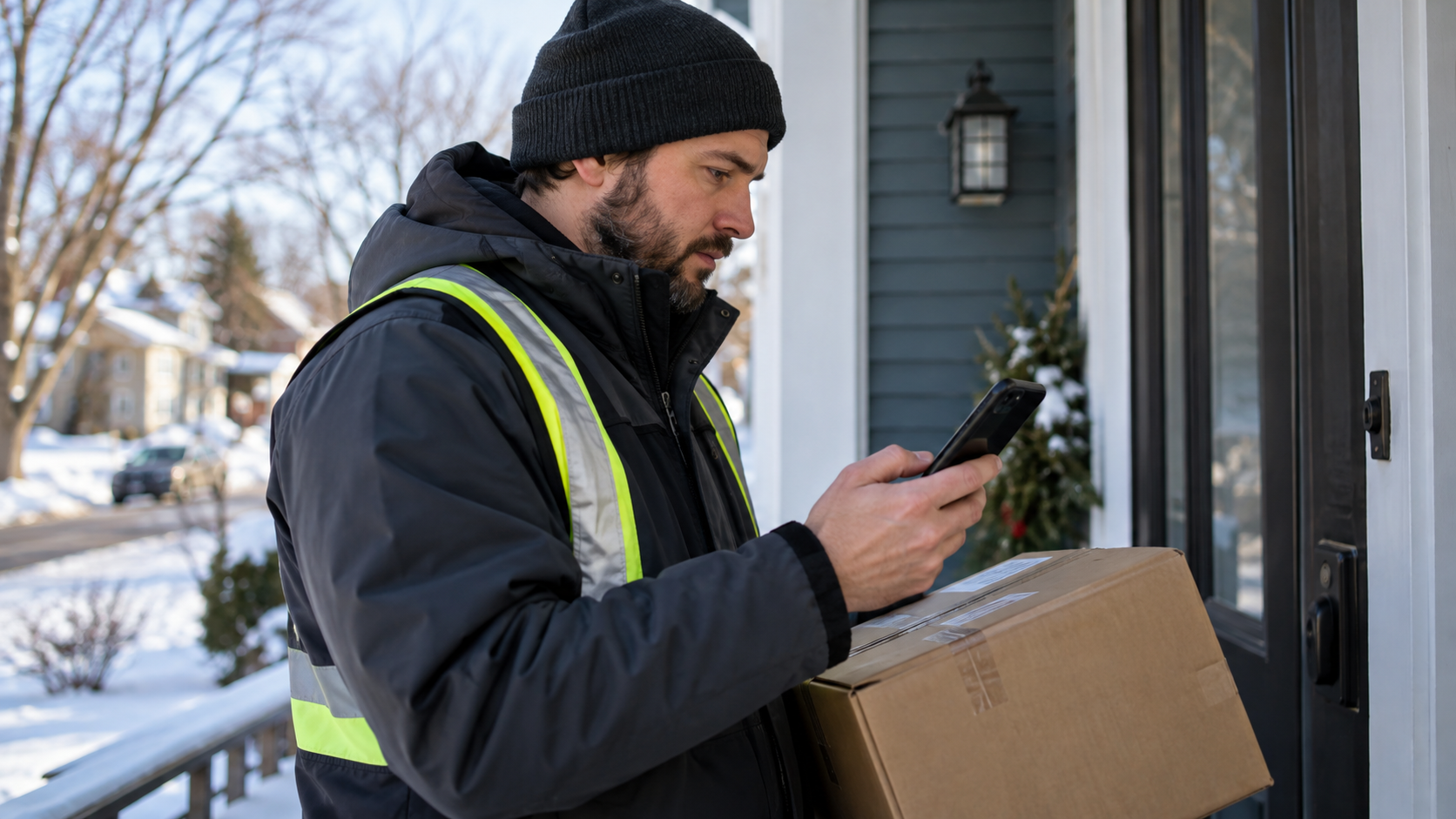
A driver hands a parcel to an authorized recipient at 2:10 p.m. The route app then shows the delivery at 1:10, while the scanner's clock shows 2:11. Another stop appears to have happened before an earlier one. The driver should not edit the device clock or repeat the scan to make the list look orderly. The difference may involve time zone display, a device setting, delayed sync, or an app record that needs support review.
When the device clock disagrees with route timeline records, preserve the times as observed and identify which clock each came from. A physical handoff time, device display time, app event time and server-recorded time are not automatically the same thing. The employer's system must determine which field is authoritative for the delivery history and how to correct a real error.
Android's time overview describes automatic device time and time-zone detection as separate functions. NIST guidance on audit timestamps illustrates why a timestamp's offset matters when records are compared. Those sources explain possibilities; they do not identify the cause of this driver's mismatch or authorize a manual device change.
Park for a delivery device time check
A delivery device time check begins while the vehicle is safely parked. Read the device's displayed time and date, the time zone if accessible under policy, and the app's timestamp for the affected stop. Do not troubleshoot clock settings while driving. Keep the stop and item IDs visible so the later report ties the discrepancy to the right delivery.
Compare the displayed time with a trusted reference approved by the employer, such as a station-managed clock, another managed system, or support's reference. Avoid treating the driver's personal phone as unquestioned authority; it too can have a different time-zone setting or incorrect clock. The purpose is to identify the size and pattern of the difference, not to choose a winner based on whichever display looks familiar.
Note whether the mismatch is constant across several stops. A one-hour difference repeated on every event may suggest a display offset, while one isolated out-of-order event may reflect a sync or event-record issue. Those are observations, not diagnoses. Report the pattern and preserve the actual times as shown.
Separate display time from event time
The clock at the top of the device is one display. The route card's delivery time is another. The system may also keep an event creation time and a later synchronization time, depending on its design. The driver should not assume a route card's label tells which field it shows. Ask support when the distinction matters.
An event may have been recorded while offline and displayed after service returned. A late appearance in the route list does not prove the physical handoff happened late. Conversely, an early-looking timestamp does not prove the package was delivered before the driver reached the address. Use item, stop and handoff evidence with the time fields.
If the app labels both “scanned at” and “synced at,” record them separately. If it only shows “time,” do not assign a technical meaning from memory. Support can inspect the platform's record. The driver can preserve the exact label and value shown on screen, which is often enough to start a useful investigation.
Check the time zone and date boundary
A route crossing a time-zone boundary is unusual for some local deliveries, but a device or app can still display a different zone from the work location. A one-hour mismatch may also occur around a daylight-saving transition. Do not conclude either cause without checking the date, displayed zone and employer's system settings. Android documents automatic time-zone detection as distinct from clock time; not every device uses Android or has those settings exposed to drivers.
The date matters as much as the hour. A stop near midnight might display on the prior or next calendar day if one system shows UTC and another local time. A route timeline sorted by a field the driver cannot see may then appear out of order. Record the full date and displayed zone or offset if available, rather than only “one hour wrong.”
Do not change the device zone to force one stop into the expected place. A managed setting may affect later scans or audit records. Ask the device owner how to correct the clock and the route owner how past events will be interpreted. Those may be different tasks.
Work through a two-stop example
Imagine a driver completes stop S-21 at 2:10 p.m. and stop S-22 at 2:28 p.m. by the station's reference clock. The scanner display shows 2:30 p.m. afterward. The route app lists S-21 at 1:10 p.m. and S-22 at 1:28 p.m., with both item IDs and proof records intact. The repeated one-hour offset suggests a display or time-zone question, not necessarily missing deliveries.
The driver records both app labels, the device time, station reference, date, route ID, and item IDs. Support confirms that the app view is rendering the events in a different time zone and explains which time the public proof uses. The driver does not rescan either parcel. The physical handoffs and destination events already exist; the issue is interpretation of the displayed time.
Change one fact: S-21 shows 2:10 p.m. while S-22 shows 1:28 p.m. That is not a uniform offset. Support should inspect S-22's event and sync history instead of applying a blanket one-hour explanation. Change another: the device date is a day ahead. Device support must assess that setting before new scans, while route support preserves the actual earlier handoffs. These are hypothetical outcomes; no app-specific time behavior is asserted.
Preserve the physical handoff evidence
If a recipient accepted the parcel, keep the item ID, authorized recipient or location, proof reference and approximate handoff time under the employer's process. The driver does not need to invent a precise second to dispute an app timestamp. A named time source and reasonable interval are more useful than false precision.
If the parcel remains in the vehicle, a route card with a delivery time is a more serious discrepancy than a mere display offset. Stop and reconcile the item and destination record. Do not treat the wrong time as the only issue when the app says an undelivered package was delivered. The physical state determines which problem support must investigate.
Preserve original proof and any permitted screenshots before a correction. A later fixed display should not erase what the driver observed when the issue was reported. The before-state can explain why dispatch delayed the next stop or why a customer saw an odd delivery time.
Ask for route timestamp reconciliation
route timestamp reconciliation asks the route owner to identify what each time field means and whether the destination event is correct. Send the route and stop IDs, item ID, full displayed date and time, device time, time-zone label if visible, approximate physical handoff time, and any sync gap. Keep different sources named in the message.
For example: “At 2:30 p.m. station reference, scanner D-42 shows 2:30. S-22 for P-417 appears in the app as delivered at 1:28 p.m. The recipient accepted the parcel around 2:28 p.m.; proof is attached. Please confirm the route event's time zone or whether the event record needs correction.” That request is narrower than “my whole route is wrong.”
Ask support to state the result: display conversion only, device clock issue, delayed sync, or incorrect event. If a correction is needed, use the employer's authorized process and preserve the original event identity. Do not delete and recreate delivery proof just to obtain a prettier timestamp.
Keep new writes controlled while the clock is uncertain
A wrong device clock may affect later event ordering, depending on how the platform stamps and syncs records. Ask device support whether scanning may continue or whether the device needs a managed correction or replacement first. The driver should not change system time manually unless instructed. An unauthorized setting change can make the before-and-after record harder to interpret.
If the discrepancy appears only in a view and support confirms the authoritative destination times are sound, the route may continue under their instruction. If an in-flight or uncertain event remains, reconcile it before a later destination write. Do not assume every future scan will be wrong, but do not ignore a known clock fault that support says affects event records.
If a replacement device is issued, check its account, route ID, time and last confirmed stop before continuing. A new clock does not retroactively fix earlier records. Keep the original device and incident reference under the employer's process until those events are reconciled.
Compare the sequence as well as the numbers
The route list may look out of order because it sorts by planned arrival, actual scan, sync receipt, or another field. Before declaring a clock fault, check what the visible timeline claims to represent. A stop planned for 1:00 p.m. can be completed at 2:10 p.m. without either clock being wrong. The driver should preserve the column or label associated with each time.
Use two or three adjacent stops as a small comparison. If all completed events differ from the reference by the same amount, that supports an offset question. If only one stop appears earlier than its predecessor, inspect that stop's item and event state. The issue could be a queued scan, late sync, duplicate event or an app display problem. The driver should not apply a uniform clock correction to a nonuniform pattern.
The physical sequence helps. Which address did the driver visit first? Which parcel was handed over? Were there receipts or route notes for each? Those facts can show that a list sorted unexpectedly without requiring the driver to calculate server time. If the order cannot be reconstructed reliably, say so and ask support to inspect authoritative records.
Avoid backfilling exact times from memory. A statement such as “S-21 was delivered before S-22, roughly between 2:00 and 2:30 by station time” is more honest than invented minute marks. The route system may have precise timestamps for accepted events; the driver contributes the physical sequence and source of their time estimate.
Distinguish route edits from clock errors
Dispatch may change a planned time window or reorder stops during a shift. A card's planned time could move while completed proof stays the same. If the route timeline appears wrong after an assignment update, check whether the displayed field is planned or actual. A later planned time is not a revised physical handoff time.
If the app shows a new stop inserted between two completed deliveries, the list order may change without changing any event. Verify stop IDs and status before concluding the clock shifted. OG-291 handles cached-versus-new assignment; this article focuses on the time fields attached to already identified tasks.
Ask route support whether the difference is in the schedule, event timestamp, or display conversion. Each has a different owner. A schedule correction might be routine dispatch work. An event-time correction requires preserving the original destination record and reason. A device-time fault belongs to managed-device support. Treating all three as “clock wrong” can send the driver toward a setting change that solves none of them.
Keep the customer-facing status separate. A promised delivery window may differ from the time a parcel was actually handed over. Do not edit proof to match the promise. Report the real handoff and let the appropriate team address a scheduling or service issue.
Capture a timestamp with its source
Every time in the incident note should have a source label. “Device display 2:30 p.m.,” “app delivered field 1:28 p.m.,” “station reference 2:30 p.m.,” and “recipient handoff approximately 2:28 p.m.” are four different facts. The date and time zone should be included when available. Without source labels, a later reviewer may compare values as if they came from one clock.
If the employer permits screenshots, capture the relevant app field and device clock before support changes settings. Do not include unrelated customer addresses or messages when a cropped, item-bound view will do. If screenshots are not allowed, type the exact values and labels into the approved support ticket. The aim is to preserve before-state, not to create a personal archive of route data.
Do not rely on the order in which photos appear in a phone gallery as proof of handoff sequence. Image metadata can reflect device time or later editing and upload. The approved proof record, item identity and physical notes are stronger together than a single camera timestamp. Support can inspect the destination system's authoritative fields.
If the device auto-corrects its time while the driver is observing it, note the before and after displays and the approximate moment. That change may help explain why earlier and later events differ. Do not manually switch it back to recreate the old condition; preserve what was seen and let device support assess it.
Hand off unresolved time discrepancies at shift end
A driver may finish the route before support determines the cause. The handoff should name affected stop and item IDs, the displayed times and their sources, the physical handoff results, the device ID, and the support owner. Do not close a timestamp discrepancy just because the shift is over. A recipient may later ask why proof appears before the reported delivery.
If all parcels are accounted for and only a display offset remains, the handoff can say that clearly. If a parcel's delivered status conflicts with its physical custody, that is a different, more urgent route-state problem. Keep the issues separated so the next worker does not assume a time-zone explanation resolves an undelivered item.
Ask support for the next distinct check and its owner: inspect event creation and server receipt times, verify time-zone rendering, or test the managed device clock. A vague “monitor the app” leaves the original discrepancy unexplained. The driver does not have to perform the technical repair; the preserved item-bound evidence lets the authorized team do it.
When support supplies an answer, update the same incident record with the observed correction and affected events. Do not replace the first note. A clear before-and-after account explains both what the driver saw and what the system later confirmed.
Record the correction without rewriting history
The incident note should state what appeared wrong, what support found, what change was made, and which earlier events were affected. A display-only explanation can close the concern without changing delivery data. A real event correction should identify the original record and corrected result. Avoid editing a personal log so it appears the discrepancy never happened.
If the problem recurs, record the new date, device and stop. A repeated one-hour offset may share a cause; one isolated timestamp may not. The driver can pass the pattern to support without running the same failed fix again. Device administrators own any setting or app repair for later routes.
Drivers comparing delivery roles can use the Saint Paul delivery driver Careers hub and published delivery job-offer review guide to ask how device issues are supported. On a live route, the driver can preserve the time source, item identity and actual handoff, then let the authorized system owner determine whether the mismatch is display, clock or event history. Changing a clock to make a card look right is not a substitute for that answer.