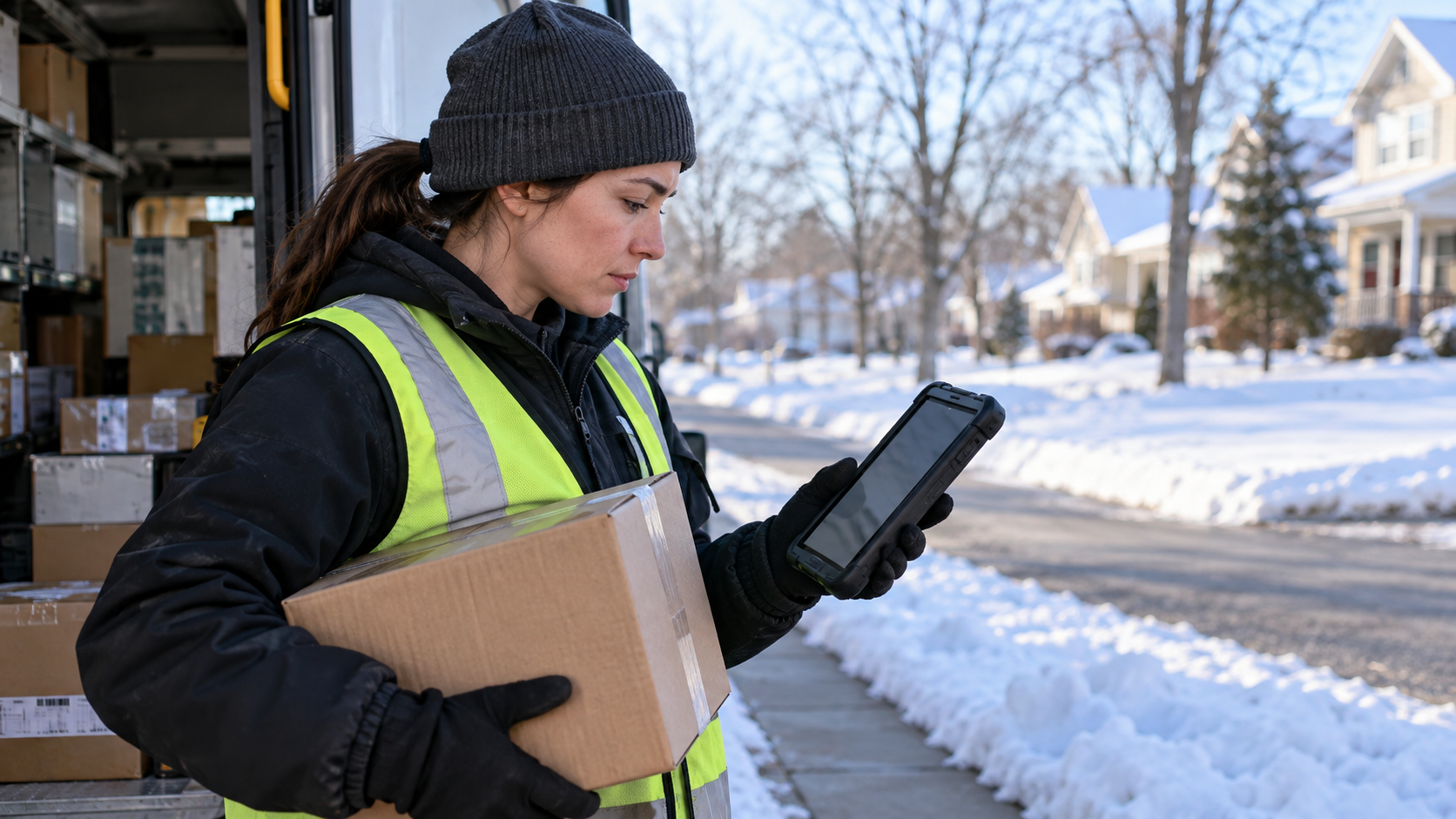
A driver sees a stop card appear after a weak-signal interval. The address looks familiar, but the card is near the top of the route list and a notification says assignments changed. It could be an older stop the app is showing from local storage, a re-ordered existing stop, or a new task sent by dispatch. The driver should know which before loading a parcel into the hand or making a delivery scan.
To distinguish a cached stop from a newly assigned stop, compare stable identities and the app's documented update state: route ID, stop ID, item IDs, assignment time if available, and dispatch confirmation. A card's position or appearance on screen is not enough. A stale view may still look complete, while a new assignment may display before all related parcel details have arrived.
Android's offline-first architecture guidance explains that applications can use local data and later reconcile it with network data. That is a general design pattern, not proof of how this delivery platform works. The employer's app documentation and live assignment record determine whether a visible card is cached, current, or pending.
Park before the cached route stop check
A cached route stop check begins at a legal parked location, not while the vehicle is moving. Open the route in the approved device and note the currently signed-in account and route ID. If the screen changed while the driver was in transit, do not infer a new stop from a notification sound or colored badge. Read the actual stop details after parking.
Look for the app's documented update indicator. It may show a last-sync time, pending download, offline label, or no visible marker at all. Do not invent a meaning for an unfamiliar icon. If the route list is still loading, wait or contact support instead of selecting a card that might change. A weak connection can make one part of a page update before another.
Keep the physical parcel count separate. A new stop card without a matching parcel on the vehicle might be a pickup, a service task, a pending assignment, or an error. The driver needs the full task type and item identity. Conversely, a parcel may be on the vehicle before its stop card is visible; do not force it into the first similar address.
Compare stable stop and parcel identities
The route order can change for ordinary operational reasons, so list position is a weak identity. Compare the stop ID, address, recipient or location as permitted, and item barcode or shipment ID. The stable identifiers supplied by the platform matter more than a card moving from position 12 to position 4.
If the same stop ID appears in both the old and new view, check whether its status, time window, or item list changed. It may be an existing stop updated by dispatch rather than a wholly new assignment. If a different stop ID uses a familiar address, do not merge them by eye. Two recipients in one building can share an entrance, and a new pickup may be scheduled at a location previously served by a delivery.
Preserve the old view if the employer's privacy rules allow a screenshot or route-event note. Record the time and device ID. Do not copy a full customer route into an unapproved personal app. The purpose is to compare identities, not create a parallel dispatch system.
Look for new stop assignment confirmation
A new stop assignment confirmation comes from the authoritative route app state or dispatch owner, not merely from a push alert. Check whether the app labels the stop assigned to this driver and route after a successful update. If the platform has an assignment timestamp or message ID, preserve it. If no such field exists, ask dispatch to confirm the stop and item IDs.
The driver's question can be narrow: “Route 18 now shows stop 27, ID S-503, for carton 417. Is this a new assignment to my route, or an old card appearing after sync?” That question lets dispatch answer with the identity that matters. “Did my route change?” may prompt a broad answer while the specific stop remains uncertain.
If dispatch confirms the stop is new but the parcel is not on the vehicle, ask how the item will be obtained or whether it is a pickup. Do not mark the stop attempted or delivered to remove it from the queue. The record should show that an assignment exists and the physical work has not started.
Separate a reorder from a new task
A stop can move in sequence while keeping the same item and service type. That changes travel order, not necessarily custody. Check whether the platform still shows the same parcel assigned to the driver and whether the stop's requirements changed. A new time window or access note may matter even if the package is unchanged.
If the route update lists a new stop ID and a new package ID, the driver should verify that item physically belongs to the load or is meant to be picked up. If the card only reappears after reconnecting, do not call it new until the assignment source confirms it. The app's local display can make an existing task look freshly inserted.
Do not use the address alone as the test. Multiple stops can share a building, and one stop can have several packages. A duplicate-looking address is not automatically a duplicate stop. OG-296 addresses duplicate stop records in depth; this article asks first whether the card reflects current assignment rather than stale local data.
Work through a route-update example
Imagine a driver parked after stop 14. The app had briefly shown “offline,” then returns with a card near the top for a retail building already visited earlier. The driver compares the new card's stop ID with the completed visit. The earlier delivery was S-214 for parcel P-882. The visible card is S-309 for pickup P-941, with a different time window.
The driver does not assume the familiar address is a cached copy of the completed delivery. They confirm the app has finished its documented sync and ask dispatch whether pickup S-309 is assigned to route 18. Dispatch confirms it and gives the pickup window. The driver then checks the task's actual requirements before traveling back. No parcel delivery has been inferred from a location match.
Change one fact: the card has stop ID S-214 and parcel P-882, the same as the completed delivery, but shows as open. That is a status conflict to reconcile before another scan. Change another: S-309 appears, but the app says “pending assignment.” The driver waits for authoritative confirmation rather than treating it as final. These identifiers are hypothetical; the example illustrates comparison by task identity.
Do not scan an uncertain card
A real barcode scan is a destination write. If the card may be stale or belongs to another route, a scan can misstate where the item went or create a duplicate event. Keep the physical parcel secure and use a read-only route view or dispatch confirmation first. Do not scan a package merely to see which card opens.
If the driver already began an action when the discrepancy appeared, preserve the before-state and the exact attempted action. Did the app accept a scan, show a pending spinner, or display an error? Do not repeat the same scan while that result is uncertain. A stale card and an in-flight write are two distinct problems; both need to be resolved before later delivery events.
The driver can explain the hold to a recipient under company messaging rules without exposing internal IDs. A short service delay is preferable to proof attached to the wrong stop. The next action should come from the route owner or the app's documented conflict process.
Check what the app updated and what it did not
An app may update the stop list while package details or instructions lag behind, depending on its design. The driver should not assume that all fields are current because one badge disappeared. Check the last-sync indicator and the fields required for this stop: service type, item identity, address, access instructions, and any required proof. If a field conflicts with dispatch, preserve both values and ask which is authoritative.
Google's offline-first guidance shows why local and network data can require reconciliation in some software. It does not authorize the driver to choose which conflicting version wins. The employer's route system must resolve the assignment and state how the driver should proceed.
Avoid reinstalling or clearing app data as a first response. A local record or unsent event may be needed to explain the discrepancy. Device support can advise if a technical reset is necessary after preserving any pending work. The driver should report the screen and IDs before changing the device state.
Account for the physical load after confirmation
Once the stop is confirmed current, match the task to the vehicle. A newly assigned delivery should have an identified parcel or an approved transfer plan. A pickup requires a location and instructions for receiving the item. An existing stop that was merely reordered may require no change to the load, but the driver should still check the item before arriving.
If dispatch assigns a stop but the parcel is absent, do not invent a delivery attempt. Report the missing item under the route workflow. If a parcel is present but its stop was removed, ask whether it should remain in custody, be reassigned, or return to the station. The assignment decision and physical parcel disposition must agree.
Keep item-level identifiers intact. A handwritten note like “box for store” may be ambiguous when the same store has a delivery and pickup on one route. The app and dispatch record should let the next worker know which physical item belongs to which task.
Check which driver owns the new task
A stop can be real and current without belonging to this driver. Dispatch may reassign a pickup to another route or remove a task after the driver last synced. Compare the assigned driver or route field with the driver's current route identity. If the app displays conflicting ownership, ask dispatch to resolve it before scanning. A notification addressed to the device may not be a final assignment to the person holding it.
This matters on shared hardware. A scanner that was used on a prior shift may retain a local view of that driver's stops until the managed account and route update complete. The visible list can look plausible in the same delivery area. Check the account and route at the top of the app, not just the stop address. If the wrong identity appears, use the employer's sign-out or transfer procedure rather than editing stop details.
An assignment may also be conditional. A card labeled “offered,” “pending,” or “awaiting acceptance” should not be treated as assigned until the employer's workflow says it is. If the driver is uncertain about a label, preserve its exact wording and ask route support. Do not translate a vague badge into a completed dispatch decision.
After dispatch clarifies ownership, refresh through the approved method and confirm the card reflects that decision. If the card still appears on the wrong route, keep the conflict open. A verbal answer may guide the physical plan, but a lingering app mismatch can cause later scans to land under the wrong route record.
Make a concise before-and-after comparison
When a screen changes after reconnecting, write down only the fields needed to identify the difference: route ID, stop ID, item ID, task type, status, and last visible update time. If the employer permits screenshots, one before and one after may preserve those fields. Avoid saving unrelated customer addresses and proof images merely to show that a card moved in the list.
The comparison should say what changed, not what the driver assumes caused it. “S-214 moved from position 12 to position 4; parcel P-882 unchanged” describes a reorder. “S-309 appeared with pickup P-941 after sync; assignment owner not yet confirmed” describes a possible new task. “S-214 changed from complete to open” describes a status conflict. Each statement points support toward a different check.
Do not erase a failed or uncertain update attempt. If the first refresh timed out, record that result and the state visible afterward. A later successful refresh may produce a new view, but it does not make the earlier uncertainty irrelevant if a delivery action occurred during the gap. The exact chronology can show whether a scan was attached to an old version of the route.
The driver does not need to run a formal audit at every ordinary reorder. Use this compact comparison when the stop identity or authority is genuinely unclear. A small, item-bound record protects the route from a mistaken scan without creating a chain of approvals for harmless display changes.
Hand off a discrepancy that outlasts the shift
If dispatch cannot resolve the card before the driver finishes, name the stop and item, the physical parcel state, the visible app state, the last confirmed assignment, and the support owner. A later driver should not be told simply that “the app is wrong.” They need to know whether the parcel is still on the vehicle, whether any recipient received it, and whether an event was attempted.
If the task is a pickup, say whether the pickup occurred. An apparent new pickup card can remain in the app even though no item was collected. If a customer gave the item to the driver before ownership was clarified under an authorized process, preserve that custody fact separately from the unresolved assignment. Do not make the app status fit by entering a delivery or pickup event under a different stop.
When the next worker receives the route, they should confirm that the assigned account and current stop list match the handoff. The previous driver's screenshot is evidence of what was visible at a time, not current authority for a new shift. Dispatch or the live app state must resolve the stop before the next write.
The discrepancy closes when the authoritative route record and physical item disposition agree. A card disappearing from one device may simply reflect a refresh or transfer; confirm where the task went. A card appearing on another device may still be pending. Preserve the item identity until the handoff and route ownership are clear.
Close the comparison with a known route state
The decision is complete when the driver can say whether the card is an old local view, an update to an existing stop, or a confirmed new task. Record the source of that conclusion, the relevant stop and item IDs, and any action taken. If the app and dispatch still disagree, keep the discrepancy open with a named owner and do not enter a conflicting scan.
Drivers comparing delivery roles can use the Saint Paul delivery driver Careers hub and published delivery job-offer review guide to ask how route changes are communicated. On a live route, the driver should park, compare stable identities, confirm current assignment, and only then handle the parcel under that stop. A card on a screen is a prompt to verify, not by itself a new delivery.