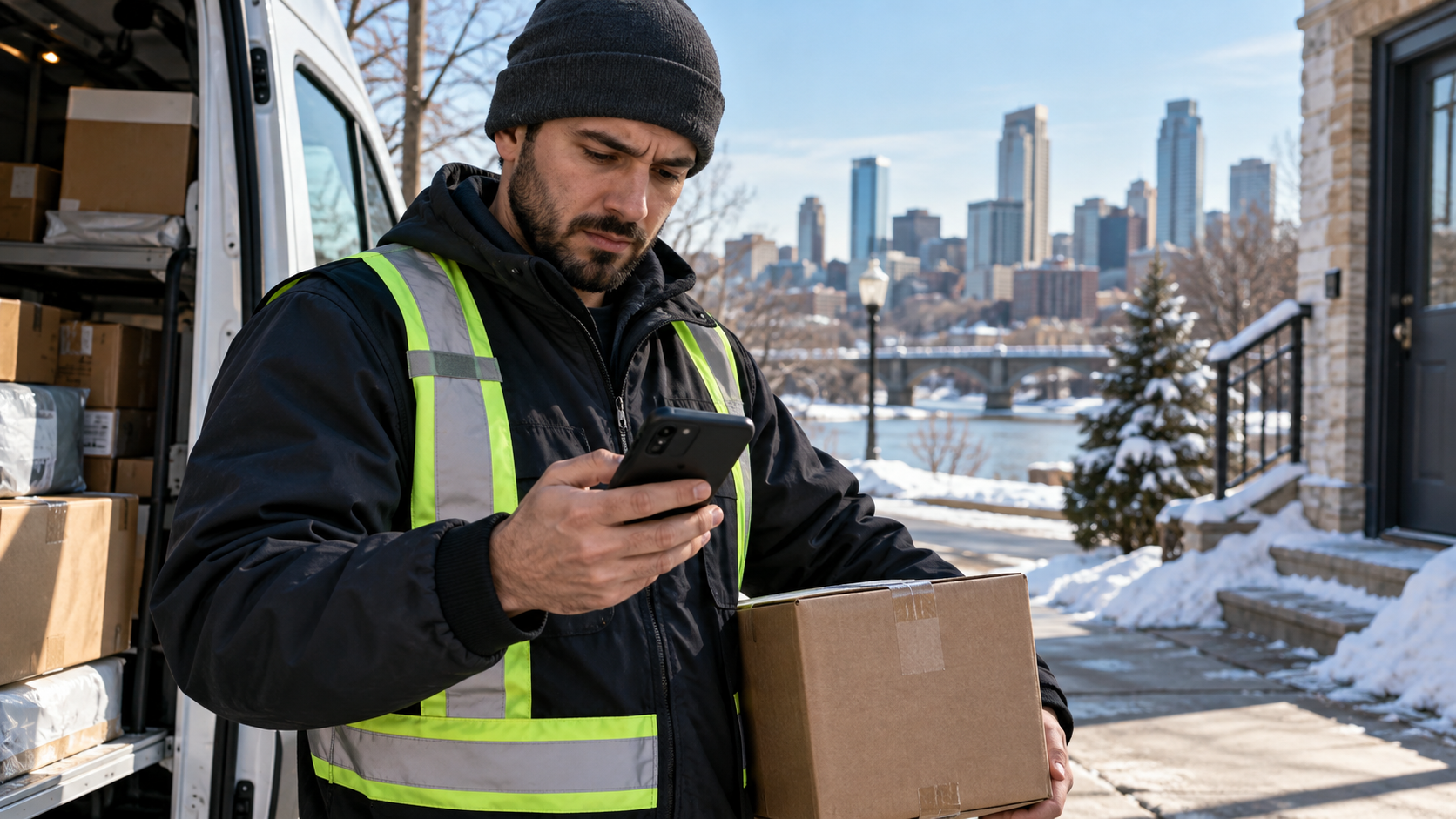
At station departure, your route contains twelve deliveries and two pickups. An hour later, a text asks you to collect another package across town. It could be a dispatch assignment, a customer request, an old message, or a request intended for another driver. Do not treat every new address as part of your route merely because it arrives during the shift. Compare it with the released plan, verify who sent it, and check whether the employer's live system now assigns the pickup to you.
Minnesota delivery driver added pickup requests are new tasks only when the employer's authorized process makes them yours. A planned pickup was in the route at release or clearly assigned during the briefing. A later pickup has a separate request time, source, location, service window, package expectations, and route effect. Ask dispatch how it marks a newly added pickup and whether the driver must acknowledge or accept it. Keep the route record aligned with what actually happened.
This article is about identifying and reconciling additions, not deciding whether you may reorder existing stops. CISA's phishing guidance supports verifying unexpected messages; it does not authenticate a particular pickup text. The employer's dispatch channel and live route are the sources of assignment authority. Public road information such as Minnesota 511 may inform a timing question, but it does not add work to your route.
Preserve the released route as the baseline
Know what was assigned when you left the station. Use the employer's approved app or manifest to identify the route version and planned stops. You do not need a personal copy of every customer address; the system should retain the assignment. A baseline lets you ask whether an afternoon pickup was new, moved from another driver, or merely a delayed display of something already planned.
If a pickup was mentioned verbally at the morning briefing but did not appear in the app, ask whether it was formally assigned before departure. A trainer's example is not a route task, and a dispatcher may have been describing possible work rather than a confirmed pickup. The question is what the route owner actually released. Resolve that uncertainty before you rely on the pickup for the day's plan.
Do not call a pickup “added later” solely because you noticed it later. You may have overlooked a stop that was present from the start. Check the app history or ask dispatch when the task entered the route. The distinction matters for understanding whether a notification failed, the route changed, or the driver missed an existing assignment.
Compare planned route stops vs new pickups
The planned route stops vs new pickups distinction turns on timing and authority, not just stop type. A morning manifest may include a pickup at a commercial account. Another pickup could be added at noon by dispatch. Both may look similar in the app after the update. Ask whether the system shows an addition timestamp or change notice, and whether a driver is expected to acknowledge it.
If the request comes by text, compare its sender and details with the authorized route channel. A customer may ask you to collect a return while you are already at a delivery stop. That request does not automatically create a pickup task for your route. Follow the employer's process for customer requests. Do not accept an item and hope dispatch will add a record later.
A planned stop can also change its purpose. A delivery location may become a pickup as well, or a pickup may be canceled. Ask how the app represents that change. Do not assume that because the address stayed the same, the task stayed the same. The live route should show what you are authorized to collect and how to record it.
Obtain pickup assignment confirmation
A pickup assignment confirmation should identify the task, responsible driver, location, window, and official route record. Ask dispatch: “Is the new pickup at the west warehouse assigned to my route? If so, what is its pickup window and where will it appear in the app?” This lets the route owner check both the assignment and the system state. A vague “can you swing by?” may not provide enough detail for an authorized handoff.
If a supervisor calls with a new pickup, repeat back the address or task identifier through the approved channel and ask whether dispatch will add it to your live route. Do not write customer details into a personal note if the app is supposed to hold them. If the system update will lag, ask what temporary record the employer uses and when you should expect the task to appear.
If the task does not belong to you, tell the sender or dispatch promptly. A request may have been routed to the wrong driver. Do not silently ignore it if it appears in your official queue; ask for correction so the intended driver or customer is not left expecting service. Conversely, do not drive to a pickup that is absent from your assignment merely to be helpful.
For a simple timeline, suppose your route was released at 7:00 a.m., a warehouse emails a pickup request at 10:15, and dispatch adds the task at 10:40. The email is evidence that someone requested service; the dispatch update is evidence that the task became part of your route. If the app still shows no task at 10:45, ask dispatch whether the update failed or whether you should use a temporary approved record. Do not describe the 10:15 email as if it had already assigned you the pickup. The distinction prevents a request, acceptance, and completed collection from being collapsed into one event.
Verify an unexpected source before acting
A new task can arrive through an app, dispatch call, supervisor text, customer message, or vendor notification. Ask the employer which channels can assign work. An unfamiliar number claiming to be dispatch may be legitimate, but verify it through a known channel before following a new link or sending route information. CISA's general message-safety guidance supports that caution. Do not use a link in a surprising text to sign into a payroll or route account without verification.
If a customer sends a direct request, respond under employer policy and route it to dispatch. Do not promise a pickup time before the employer accepts the task. The customer may not know your capacity, route commitments, or service rules. A courteous “I will check with dispatch” can preserve the conversation without creating an unauthorized obligation.
If the request comes from another driver, ask whether that driver is transferring the task through the official system. A friendly message does not by itself move the pickup record, package accountability, or customer notice. The route owner should confirm the transfer and its timing.
Check what the pickup requires before inserting it
Ask what you are expected to collect, where, and within what window. The employer may have packaging, scanning, identification, vehicle-capacity, or account-specific instructions. Do not assume every pickup is a small parcel that fits in the current load. If the task needs special handling or equipment you do not have, tell dispatch before accepting or traveling to it.
Compare the pickup with existing commitments. Will it make a timed delivery late? Does the location require an appointment or a different entrance? Would it take you outside the service area described for this role? These are questions for dispatch, not reasons to reject a task unilaterally. The route owner can adjust sequence, reassign work, or provide a clear instruction.
If the pickup is in the same building as an existing delivery, it still needs a separate task record if the employer's process requires one. Being physically nearby does not grant authority to collect an item. Ask how to scan or acknowledge the pickup and what to do if the sender has more or fewer items than the request described.
Vehicle space can also matter. A request for one parcel may become several large items when you arrive. If the added load would interfere with the employer's safe loading or vehicle limits, report the actual size and count before taking custody. Do not promise the customer you can take everything merely because the route app says “pickup.” Dispatch may change the assignment, send another vehicle, or direct a partial collection under its rules. The app entry is a starting instruction, not a substitute for checking the real item against the task description.
Place the added task in the live route
Once dispatch confirms the pickup, ask where it belongs in the sequence and whether the app will place it automatically. A new pickup may have a fixed window that changes the order of later stops. Do not simply insert it at the nearest point on your personal map. The app may update customer estimates or notify another team when the task is accepted.
If the app adds the task but your navigation still shows the old next stop, ask whether the update is pending or whether the pickup is scheduled later. Do not assume that a new task always becomes the immediate next destination. Confirm the route owner’s intended order. A separate guide covers driver authority to reorder stops; an added pickup can create a new ordering decision that requires dispatch.
If the task is canceled after being added, make sure the live record shows the cancellation. Do not leave it in a personal list as a future obligation. If you already drove toward it, report where you are and ask what to do next. The route record should show the task's actual lifecycle, not just the first message you received.
Ask whether an added pickup changes customer estimates or the scheduled time of other stops. A new task might fit between two deliveries without issue, or it might consume the margin for a timed appointment. Dispatch should decide the tradeoff when commitments conflict. If the live app inserts the pickup in a sequence you cannot follow safely or on time, raise that conflict immediately. Do not silently leave it in the list while serving the original route as though nothing changed.
Use road conditions as context, not authority
A newly added pickup may be across a closure or in heavy traffic. Check current information where relevant and tell dispatch if it threatens the pickup window or other commitments. Minnesota 511 can be one source for road conditions, but it cannot tell you whether the employer will keep, delay, or reassign the pickup. Present the issue as a specific conflict: “The new pickup window is 2:00–2:30, and the bridge closure adds travel time from my current stop. How should I sequence it?”
Do not accept a task silently and then miss its window because you assumed dispatch saw the same road alert. Likewise, do not decline it solely from a map estimate if the employer has another plan. Give the route owner the relevant location and timing through the approved channel, then follow its decision. Avoid sending public maps with customer addresses in an open group.
If the road condition changes after you accept the pickup, update dispatch. A prior assignment confirmation does not freeze the route for the rest of the day. The pickup remains an authorized task until the employer changes or cancels it, and its feasibility may need another review.
Handle a customer request at an existing stop
Suppose you deliver a parcel to a business and the clerk asks you to take a return that is not in your app. Do not assume the return is a planned pickup because you are already there. Ask whether the employer permits walk-up pickups and what authorization or label is required. If the answer is no or unavailable, explain that you need the request entered through the proper channel.
If dispatch authorizes the pickup while you are on site, ask how it should appear in your route and how you document the item. Do not scan it under an unrelated delivery or use another customer's label. If the task cannot be entered before you leave, follow the employer's instruction about whether to wait, return later, or decline the item. The result should be traceable to a legitimate pickup request.
This is different from rearranging planned stops. The work itself is new. Even if accepting it would be efficient, the employer may need to confirm service eligibility, capacity, and accountability before it becomes your task.
Document a transfer from another driver
Another driver may ask you to take a pickup because you are closer. Ask dispatch to confirm the transfer and update both routes. The original driver may still have the task in their app until the employer moves it. If both drivers collect or neither does, the customer record can become confusing. A clear transfer identifies the new owner and effective time.
Do not rely on a screenshot from the other driver's route as your assignment. It may expose customer details and leave no record that the task became yours. The employer's live system should show the pickup, or dispatch should give an approved temporary method. Ask what to do if you reach the location before the app refreshes.
If the original driver already attempted the pickup, ask for the status and reason it was not completed. A transfer after a failed attempt is different from a fresh request. You may need different instructions or a new window. Do not erase the earlier attempt by starting a duplicate task without the employer's direction.
Close the loop on an added pickup
After you visit the location, record the actual outcome under the employer's pickup process: collected, unavailable, refused, canceled, or another applicable status. Do not mark it collected before the item is in your custody. If the quantity or condition differs from the request, report that exception. The route record should describe the work performed, not just the fact that you drove to the address.
At the end of the shift, check that later-added tasks are no longer stranded in a pending queue. If an item was reassigned or canceled, the app should reflect that under the employer's process. Ask dispatch about a lingering task rather than closing it with a false status. A new pickup request is complete only when its outcome and ownership are clear.
The station versus service-area guide gives context for where routes may operate relative to a reporting station. The Saint Paul delivery driver careers hub helps readers explore roles. Neither public page can add a private pickup. Use the employer's live route and dispatch confirmation to determine whether the request belongs to you.
The useful distinction is evidence of assignment. A planned stop is in the released route; a later pickup has a new request and must be accepted into the route through the authorized process. When that process is clear, you can respond to new work without mistaking a customer text, coworker suggestion, or stale message for an official task.