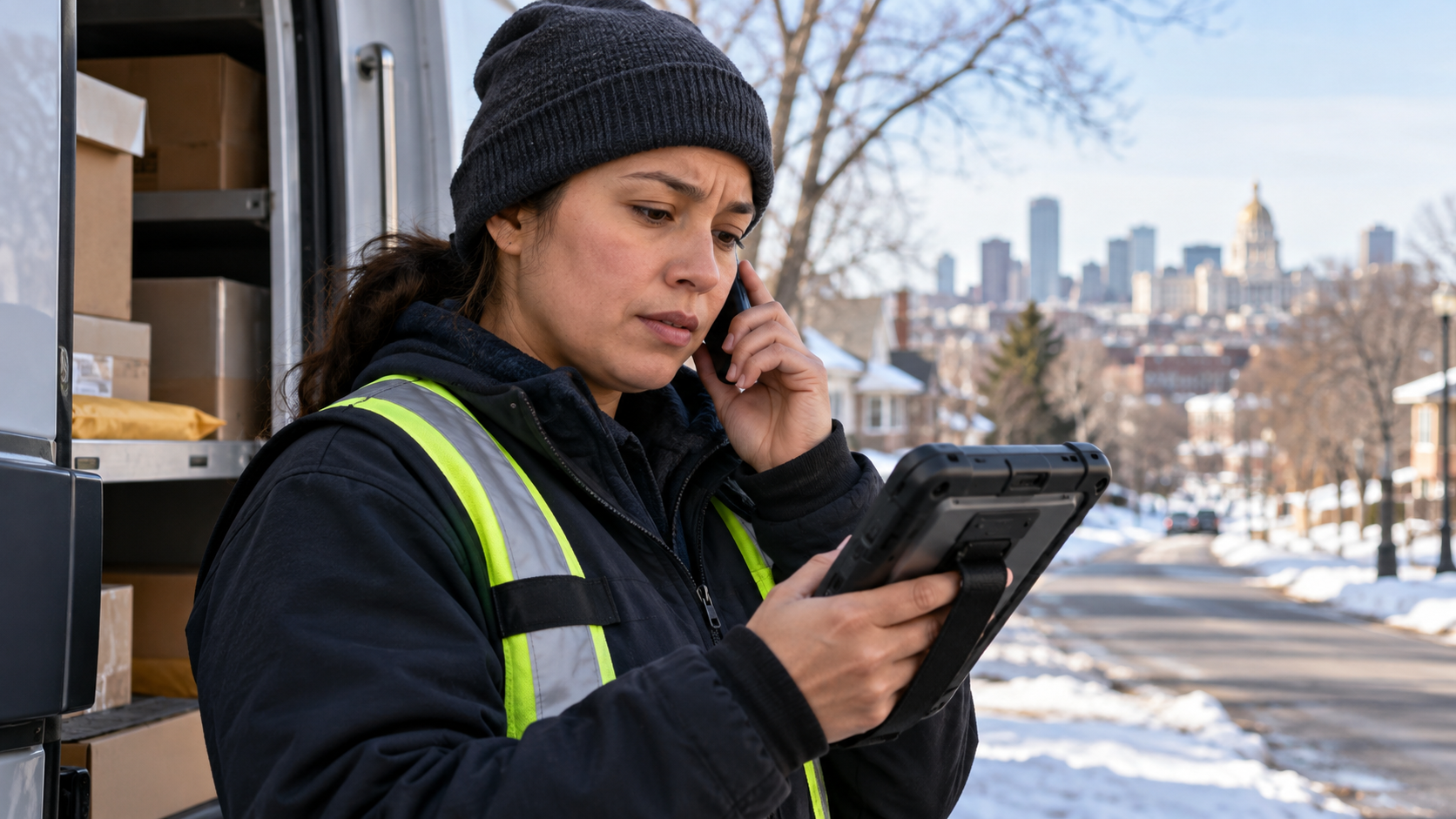
A driver signs into a scanner for a Saint Paul route and sees an urgent alert about a pickup in a different service area. The screen shows another driver's route ID. The alert might be stale, sent to the wrong account, or a real reassignment that dispatch has not explained. Acting on it immediately could create a false scan or pull the driver away from assigned parcels. Ignoring it without telling anyone could leave a real pickup uncovered. The first move is to establish ownership.
To report a delivery-device alert for another driver's route, stop in a safe place, confirm the account and active route shown on the device, and compare the alert with the employer's current assignment. Do not accept, complete, or scan the other route's work based only on the notification. Send dispatch or support the alert identifier, time, and route mismatch through the approved channel. Ask whether the alert is erroneous, an unconfirmed reassignment, or a task requiring a formal handoff.
Minnesota's wireless-communications law remains relevant when an alert appears while driving. CISA's account-security guidance supports keeping individual credentials protected. Neither source can diagnose a particular route app. The employer's route and device owners must reconcile the actual alert, account, and parcel assignments.
Recognize a wrong-driver route alert
A wrong-driver route alert may name a route, stop, vehicle, or pickup that does not match the driver's current work. Do not assume the app is wrong merely because the location looks unfamiliar; dispatch may have sent a new assignment. Equally, do not assume the notification changed the route by itself. Compare the alert with the active route page and any direct dispatch instruction.
Look for stable identifiers the employer uses, such as route ID, shift date, stop reference, and assigned worker. Avoid relying on a customer's name alone. Two drivers may serve the same building at different times, and a route may contain duplicate-looking addresses. The issue is whether this particular alert belongs to the account and assignment the driver is authorized to use.
Record the alert time and what the screen showed before dismissing it, using the employer's permitted method. A concise note helps support trace a stale notification or wrong recipient. Do not copy the full customer manifest into a personal message. The route owner needs enough identity to find the event, not every address on the other worker's route.
Perform a device account check first
A device account check asks who is signed in, which vehicle or route is active, and whether the device was issued to this driver today. Shared scanners can retain a previous session if sign-out or reset failed. A driver should follow the employer's login procedure rather than use another worker's credentials to see whether the alert disappears. CISA's general advice on unique account access supports keeping identities separate.
If the screen shows another worker's name or employee ID, stop before creating any route event. Tell the supervisor or device support contact and ask how to restore the correct session. Do not change profile fields or route ownership on a shared device unless the employer explicitly authorizes that step. A wrong session can make otherwise accurate physical work appear under the wrong person.
If the account is correct but only one alert points elsewhere, the problem may be routing or notification delivery rather than login. Keep those possibilities separate in the report. “I am signed in as myself on route A, but alert 123 names route B” is more useful than “the scanner is broken.” It tells support where to look without claiming a cause the driver cannot verify.
Do not turn the alert into a delivery event
An alert is information, not proof that the driver possesses a parcel or has visited a stop. Do not tap “completed,” “attempted,” or “picked up” to clear the notification. If the wrong route appears in an action list, ask support how to remove or reassign it. A false event can mislead the customer, the other driver, and dispatch about physical custody.
The first driver should keep working only on confirmed assignments. Check that the current route's packages and stops still appear correctly before leaving the depot or next safe stop. If the wrong alert blocks the app, tell dispatch and use the approved workaround. Do not scan under another account simply because the normal screen is unavailable.
If the other route's parcel is physically in the driver's van, the mismatch is more serious. Secure it, identify it through the employer's procedure, and ask dispatch who owns it. The physical item may have been loaded incorrectly or transferred without a digital update. Do not deliver it based on proximity alone. The route owner must align the parcel, account, and assignment.
Capture just enough evidence for support
Support can usually work from the device ID, signed-in account, alert timestamp, route or stop identifier, and a short description of the mismatch. Use the employer's support form or dispatch channel. A screenshot may help if policy permits, but crop or protect unrelated customer details. Do not post another driver's route in a broad chat to prove the alert exists.
Include the current assignment as a comparison: “My active route is SP-12; the alert refers to SP-19.” Those labels are examples. State whether the alert was only a banner or appeared as an actionable stop. Say whether any item from the other route is physically present. That fact changes the urgency and the team that must resolve the issue.
Do not guess at the underlying bug. A stale cache, shared-device session, wrong push recipient, or new reassignment can look similar from one screen. Describe the observable state and let the route and device owners investigate. Keeping the report factual also makes it easier to test whether the repair worked.
Work through a depot example
Imagine a driver assigned route SP-12 at 7 a.m. The scanner displays a “pickup due” alert for route SP-19, which belongs to a coworker. The driver confirms their own name and SP-12 on the active route page, then checks that no dispatch message reassigned the pickup. While parked, they send support the alert ID, time, device ID, and two route IDs. They do not acknowledge the pickup as complete or leave for the other service area.
Dispatch confirms the alert was sent to the wrong device and tells the driver to continue SP-12. Support removes it. The driver checks that SP-12 remains active and the other route no longer appears as an actionable task. The coworker or dispatcher confirms SP-19 still has a responsible owner. The first driver did not need to inspect every parcel on SP-19 to make the report useful.
Change one fact: dispatch says the pickup really has been reassigned. The driver needs the formal route update and any physical parcel or instruction handoff before acting. Change another: the device is signed in under the coworker's account. The priority is restoring the correct session and reconciling any events already recorded under it, not merely hiding the alert.
Handle an alert that arrives while driving
A route alert can make a sound or appear on a mounted screen while the vehicle is moving. Do not read a long message, switch accounts, or open the other route while driving. Continue to a safe lawful stopping place, then inspect the alert. Minnesota's device-use restrictions still apply even if the notification sounds urgent.
If dispatch calls, use the employer's permitted communication method and pull over before discussing identifiers or changing navigation. A misheard route ID can create a real assignment error. Once parked, confirm the instruction in the route tool or approved channel. The driver should not promise to cover a pickup in another service area before understanding its timing and the current load.
If the alert has a countdown that expires while the driver finds a safe stop, report that timing honestly. Dispatch can decide how to cover the work. A driver should not mark the alert handled from the moving van to preserve an app metric. The event trail should show when the message was received and when a real decision was made.
Separate a stale alert from a new assignment
A stale notification may remain after the underlying task was moved. A new assignment may appear in the active route list with a corresponding dispatch instruction. Ask support which system state is authoritative. If the alert is stale, the driver can dismiss it under the approved process while the original route remains intact. If it is a new assignment, the route owner should confirm the task, timing, and any parcel custody change.
Do not treat a stale alert as a duplicate stop without checking its origin. The duplicate-stop guide addresses two entries for the same work within a route. This article concerns a notice that appears to belong to another worker. It may require account, notification, and assignment reconciliation rather than merging two customer stops.
If the app shows a cached screen after a connectivity gap, note when it last synced. The driver should still avoid deciding ownership alone. Support can compare server assignment with local display. A forced refresh or logout may be part of the approved remedy, but the driver should not erase unsynced legitimate work without instruction.
Protect the other driver's work and privacy
The other driver may not know their alert went elsewhere. Dispatch should verify that someone responsible still sees the task. The reporting driver can say the alert names another route, but should not contact the customer or edit the coworker's work directly. The route owner can reach the coworker and decide whether reassignment is needed.
Avoid sharing passwords, one-time codes, or account access to compare screens. CISA's guidance supports unique credentials; the employer's security process controls a shared device. A coworker can confirm their route through their own login or dispatch without lending an account. Keeping identities separate protects the accuracy of scans as well as private data.
If support requests a screenshot, use the approved channel and include only the necessary alert. Customer names, addresses, and notes on the other route should not be copied into a personal gallery or broad group thread. The report is about a routing mismatch, not an invitation to review another worker's entire manifest.
Check for work already recorded under the wrong identity
If the driver had already scanned an item before noticing the account mismatch, stop and report the exact event. Identify the physical parcel, real time, location, and account that recorded it. Do not create another scan under the correct account to hide the first one. Support needs to reconcile the original event and preserve the truthful history.
Ask whether the customer-facing status is affected. A wrong-account scan may still describe a real delivery, or it may refer to a parcel the driver never handled. The correction depends on the actual event. The driver should not guess from the route banner alone. The employer's scan-correction process supplies the steps.
After correction, verify that the driver's own route and time record are not distorted by the wrong session. A scanner issue can affect route accountability without changing actual work hours, but a wrong employee identity may need a separate personnel or payroll correction. Give each owner the relevant facts rather than treating one device reset as proof every downstream record is fixed.
Check the handoff after a shared-device swap
A wrong-route alert can appear immediately after one worker hands a device to another. The screen may still show the first worker's route even though the device is physically in the second worker's hands. The second driver should not begin scanning from that screen. Follow the employer's sign-out, sign-in, and device-assignment process, then confirm the new route is loaded. If the system refuses to clear the old session, contact support rather than borrowing the first worker's account.
The handoff should identify more than the device. Who has the physical parcels? Which worker now owns the route? Was the device swapped only because a battery failed, while the route itself stayed with the first driver? A device transfer and a parcel transfer are separate events. Dispatch can confirm whether both happened. Without that check, a correct login on the wrong route can still create false customer status.
If the previous worker has unsynced scans, ask support how to preserve them before a reset. A quick factory reset might remove evidence of real work if the employer's system has not received it. The second driver should not decide to erase the previous session merely because the alert is inconvenient. Device support can reconcile the pending events and prepare a clean session.
When the shared device is finally assigned correctly, record the swap time and support reference through the approved channel. This helps explain why an alert from another route appeared, but it does not prove that every scan before the swap was attributed correctly. The route owner should check any affected event identities if the wrong session was used for live work.
Confirm the resolution before resuming normal use
Ask support to state what it changed. Did it remove a misdirected notification, correct the signed-in account, or formally move a route assignment? Those fixes have different effects. A cleared banner may leave the underlying stop with the wrong worker; a corrected route may still leave a stale local alert. The driver can check the relevant screen only after knowing what outcome to expect. If the explanation does not match the device state, keep the incident open and provide the new observation.
Support may say the alert is cleared. Check the device state: correct signed-in driver, correct active route, wrong alert gone or labeled non-actionable, and any real reassignment visible. If the alert returns, report the new timestamp and current state rather than resending the original screenshot without change. A recurrence after a repair is new evidence about the device or routing path.
If the employer asks the driver to continue while the alert remains visible, get a clear instruction about what to ignore and which route screen to use. The driver can continue confirmed work if the app permits it safely. If the wrong alert blocks required scans or creates ambiguity about parcel ownership, dispatch must provide a supported path before more events are entered.
Keep the support reference until the affected route is completed or transferred. The coworker may later ask why an urgent pickup was missed. A concise record of the alert, report, and dispatch decision shows which team owned the task. It should not be used to blame the coworker for a notification they may never have received.
Ask about device support before the first incident
During onboarding, ask how shared scanners are signed out, where to report a wrong-route alert, and who decides whether a new task is truly assigned. The Saint Paul delivery driver Careers hub gives local role context. The published delivery job-offer review guide can help candidates ask about equipment and dispatch support before accepting work.
After hire, keep the support contact available through approved work materials. A driver who knows the device ID location and route-owner channel can report a mismatch quickly without exploring another person's account. The report should say what appeared, who was actually signed in, which route was assigned, and whether any parcel moved. Those facts let the employer resolve the alert while the driver protects the real route.