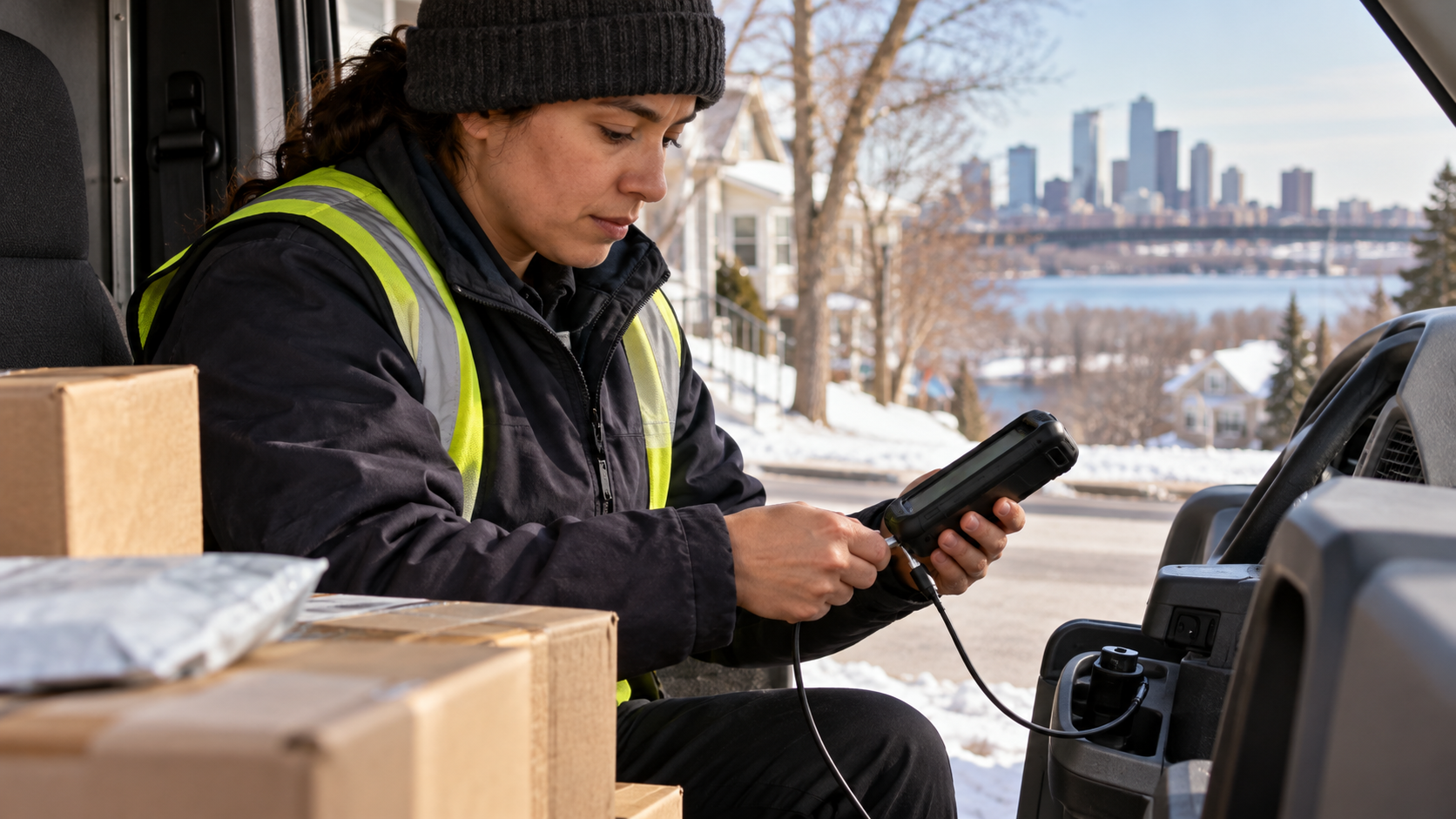
A scanner warns of low power after several stops. The driver has a parcel for the next address and more work on the route. Keeping the device alive for one more scan may sound efficient, but a shutdown during a handoff can leave the physical delivery and digital record in different states. The driver needs to know the last confirmed event, what remains in the vehicle, and which approved power or support option is available.
A scanner battery low mid-route response starts while the screen is still readable. Park safely, identify the current route and last confirmed stop, and check the approved charger. If power cannot be restored, ask the responsible team for the documented replacement or alternate process. The warning does not prove scans were lost. Equally, a blank screen cannot prove an attempted scan reached the destination.
NHTSA's distracted-driving guidance tells drivers to pull over and park before reading or sending phone messages. Use that principle for scanner troubleshooting. No fixed battery percentage works for every device, app, signal level, or route length; the driver should use the employer's thresholds and the device's actual behavior.
Park before starting a low scanner battery response
A low scanner battery response should begin at a legal, safe parked location. Do not open support chat, compare stop IDs, or change cables while driving. Once parked, read the exact warning and the displayed charge level. Note whether the device already shows a charging symbol and whether the app is open on a delivery form, route list, or completed stop.
Different screens imply different urgency. A warning on the route list before the next stop gives the driver a clean point to charge or contact support. A warning in the middle of a recipient handoff requires preserving that stop's physical and digital state first. The driver should not close an app screen or restart the unit just to clear the alert if a scan may be pending.
Look for simple visible facts without taking apart the device. A damaged cable, loose plug, or missing vehicle adapter should be reported. A battery level that keeps falling while a charger is connected is a symptom to give device support, not a reason to guess the component that failed. Keep the device ID and route ID available.
Separate parcel custody from scan status
At the moment the warning appears, ask where the parcel is. Is it still secured in the vehicle, in the driver's hands, or already handed to an authorized recipient? Then ask what the app last showed. A parcel can be physically delivered before the app confirms it, and an app can show a completed event created by a mistaken tap while the parcel remains with the driver. Each mismatch needs its own reconciliation.
If the item has not been handed over, keep it under the employer's custody rules while power is restored. Do not leave it at an unapproved place because the device may shut down. If the handoff happened and the app did not visibly confirm the event, record the item, time, recipient or location, and last screen state through the approved support channel. Do not create a second delivery record yet.
A disappearing confirmation screen is uncertain evidence. It may mean a write reached the system before shutdown, or it may mean the app never sent it. The driver cannot decide from the battery warning alone. Preserve the before-state so support can determine what the route currently records before any later destination write.
Use the approved charging equipment
Connect the device using the employer-issued or approved charger. Check the device's charging indication rather than assuming a plugged-in cable provides power. The vehicle socket, cable, device port, or power bank may have its own fault. The driver's first job is to observe whether the charge level stabilizes or rises under the approved setup.
Do not use a personal charger, remove a managed battery, or substitute another device's cable unless the employer permits that method for this unit. NIST's enterprise mobile-device guidance concerns managed equipment and deployment; it does not identify which accessory fits a delivery scanner. The asset owner and device instructions control that choice.
If a connector is hot, frayed, or visibly damaged, stop using it and report it. If the device charges, ask whether the available level and remaining route fit the employer's continuation rule. A brief rise in the number on screen does not guarantee power for several scanning, camera, and communication tasks. The driver should avoid making up a charge-time promise for the recipient or dispatch.
Run a route scan continuity check
A route scan continuity check compares the app's last accepted event with the physical parcel count. Identify the last delivery that the app clearly marks complete. Identify any stop where proof was being entered when the warning appeared. Then compare the next assigned item with what remains in the vehicle. If the app requires a sync step, use its documented process and note the result.
If the device restarted, confirm the signed-in account and route identity before entering a new scan. Old stop cards or a cached route list may appear even when the current route has not refreshed. A completed-looking tile should be compared with the specific item and proof, not treated as universal evidence that all work survived the power loss.
When a stop is uncertain, keep it named. “Stop 18 handed over; scan acceptance unknown” is actionable. “Everything disappeared” is less useful if other stops are confirmed. Support can compare the platform state against the driver's preserved item and time details. Do not rescan the same item merely to make the screen look complete; an in-flight write must be reconciled first.
Work through a parked-route example
Imagine a driver at a safe parking spot after stop 18. The scanner reads 8 percent. Stop 18 is visibly complete, stop 19 has not been opened, and twelve parcels remain in the vehicle. The driver connects the approved vehicle charger and sees the charging icon. They tell dispatch the device ID, route ID, last confirmed stop, next stop, and power condition. After the charging period required by the employer, the screen still shows stop 18 complete and the correct next item.
That is a clean continuity checkpoint. If the charge level continues to fall, the driver reports the failed charging observation and asks for a replacement or other approved plan. They do not scan stop 19 while still parked to “save” battery. The recipient has not received the parcel, and the app should not say otherwise.
Change one fact: the scanner dies while the driver is entering proof for stop 18. The parcel has already been handed over. Now the digital event is uncertain. The driver preserves the handoff facts, device ID, and last screen state and asks support to reconcile the event before another write. Change another: a replacement scanner arrives showing stop 18 complete. The driver still checks the route identity and remaining parcels. The example is hypothetical; no platform behavior is assumed.
Report the power problem with enough detail
Contact the employer's device or route support channel. Give the scanner asset ID, current charge level or shutdown state, approved charger tried, charging indication, route ID, last confirmed stop, and any uncertain event. State where the affected parcel is. “Scanner dead” omits the facts that determine whether an item may need a digital correction or physical reattempt.
Ask for a named next action. Support may choose a battery swap, replacement charger, spare scanner, return to station, or documented alternate workflow. The driver should not presume which option exists. If a replacement is approved, keep the original unit under the return process, especially if it may hold an unsynced event. Do not reset or wipe it to make troubleshooting easier without authorization.
If the support channel itself is accessible only on the dying device, use the employer's approved backup contact route. Do not send customer details to a personal group chat. A route ID, item reference, time, and concise state may be enough for an initial diagnostic. Preserve fuller recipient evidence in the secure system that is meant to hold it.
Keep the customer informed without guessing
The next recipient may ask where the delivery is. Provide only the service update the employer permits: the driver is resolving a device issue and will follow the authorized handoff plan. Do not promise a particular number of minutes based on a guessed charging rate. A scanner at 10 percent may recover quickly or fail entirely, and the recipient does not need a speculative technical explanation.
If the employer has a documented offline or alternate proof method, confirm it applies to the current shipment and use it exactly. Do not use a personal camera or informal text message as delivery proof because the scanner is low. If no authorized alternate exists, keep the parcel in custody and record the delayed or unresolved stop accurately.
The customer handoff and the route record may need separate owners. A recipient can confirm receipt of a package, but that statement alone may not repair an app event. The driver should ask support how to bind the physical handoff to the route history without duplicating a delivery. That protects the recipient, driver, and next route worker from an ambiguous status.
Transfer only after reconciling the original unit
A spare scanner can restore power, but it must be authorized for the driver and active route. Confirm its asset ID, signed-in account, route ID, last confirmed delivery, and next assigned item. Ask support whether the original unit has an unsynced event. Two devices displaying the same route do not establish that both may write to it.
Use the employer's transfer process before scanning a live parcel on the spare. If an event remains uncertain, support should resolve or fence it before the next destination write. The driver can preserve the physical item and handoff record while that happens. OG-297 addresses the full active-route transfer; the low-battery decision here is to avoid using a replacement as a shortcut around an uncertain stop.
When the new unit is ready, compare the remaining parcel count with the route list. A replacement that shows a different stop sequence may need a refresh or assignment correction. Do not try to “fix” the mismatch by creating completion events for packages still in the vehicle.
Reassess the remaining route after charging
A scanner that charges enough to restart may still be poorly matched to the remaining work. Count the stops and device-dependent tasks that remain under the route plan. Several upcoming stops may require multiple barcode reads, photos, signatures, or navigation checks. The driver need not calculate an exact energy budget from each task, but should tell dispatch whether the battery is holding steady under the approved charger and whether there is a reliable power source for the rest of the route.
If the scanner loses charge whenever the vehicle is off, the driver may face repeated low-power windows at buildings where the vehicle cannot idle or remain connected. Report that practical constraint rather than promising to keep it plugged in continuously. A charger that works in a parked cab may not support a long walk to a recipient. The employer can decide whether a spare device, battery, or route change is needed.
Do not hide the warning by lowering settings that the company needs for route function or security. A dim screen can make labels and instructions harder to read; disabling connectivity may keep the battery alive while preventing data from reaching the system. Use only employer-approved power-saving settings. If the permitted settings do not make the route workable, the issue remains for support.
The reassessment should end in a concrete choice: continue with the approved power setup, wait for an authorized replacement, or transfer work under dispatch direction. A vague “battery should be okay” leaves the driver and next support person without a basis for the decision. Record the observed charge behavior and the method selected.
Keep the vehicle and parcels secure during the pause
Device recovery may require waiting at a parking place, returning to a station, or meeting another worker. The parcels still need to remain secured under the employer's load and vehicle rules. Do not leave a package on a customer's step while sitting in the cab to charge the scanner unless that location and status are already authorized and recorded. If a handoff is in progress, complete or suspend it under the actual route procedure.
When support asks for a screenshot or device ID, take the device to a safe position where the vehicle can stay secure and customer data is not visible to bystanders. The driver should not keep a rear door open while entering a long support conversation. If the device must charge inside the vehicle, arrange the cable so it does not interfere with controls, doors, or the driver's movement under the equipment instructions.
A replacement handoff needs parcel custody clarity as well. The worker bringing a scanner may not be taking the undelivered packages. Confirm whether they are delivering a device only, taking over the route, or assisting with one stop. Record the actual transfer. A new scanner in the cab does not mean the load or route ownership changed.
If the wait affects later deliveries, ask dispatch which service update is appropriate. The delay should be reported as a device and route issue, not hidden by marking future stops attempted before the driver reaches them. Accurate parcel and vehicle state makes a later recovery possible even if the scanner remains unavailable.
Keep attempted fixes distinct from confirmed results
A low-power incident often accumulates several attempted fixes: reconnect the cable, try an approved port, restart the app, swap the battery, or issue a spare scanner. Record each attempt with its observed result. “Connected charger; icon appeared but level continued falling” differs from “charged from 8 to 31 percent and held steady during a route refresh.” Support can act on that distinction without asking the driver to reconstruct the sequence from memory.
Do not repeat an unchanged failed step simply because a new person takes the support call. Tell them what was already tried and what has changed. If the employer directs a reset or reinstall, ask how unsynced delivery events will be preserved first. A power problem and an uncertain scan may require two different owners: device support for the hardware and route support for the destination record.
Once a fix appears successful, test only the function that failed under the permitted workflow. A charger repair can be checked by the charge indicator and sustained level; it does not require a real customer scan. A replacement unit can be checked against the route ID and last confirmed event before the next live stop. This limits the chance that a diagnostic action changes customer history.
The incident is ready to close when the device method is usable and any uncertain event has a documented resolution. If either remains open, preserve the named owner and next action. A battery that no longer warns is helpful, but it is not proof that the earlier handoff was recorded correctly.
Close the power incident on a known route state
Record the alert time, device identity, approved charging attempt, support response, last confirmed delivery, resolved uncertain event, and route state when work resumed. If the device recovered, note that. If a new unit took over, note which one became authoritative and what happened to the first. A charge icon or replacement receipt is not a public delivery receipt.
Drivers comparing roles can use the Saint Paul delivery driver Careers hub and the published delivery job-offer review guide to ask what scanner, charging, and support resources are provided. On a live route, the driver can park, keep the parcel state clear, use approved power, and verify the last scan before moving to the next stop. The immediate aim is a device that works and a route record that still describes what actually happened.